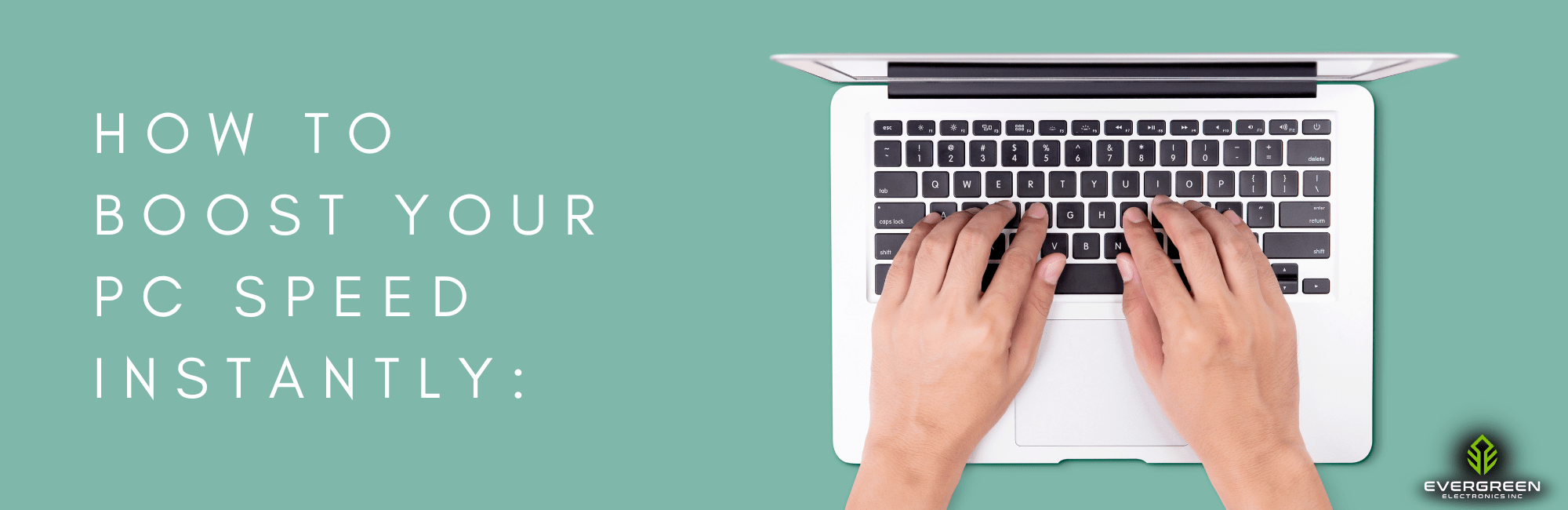
Many people assume their computer is slow because it’s old, needs expensive upgrades or needs to be replaced altogether. But often, the real culprit for a sluggish boot is something much simpler: too many programs auto-launching when Windows starts.
What Are Startup Apps?
Startup apps are programs that automatically open and run in the background the moment you power on your computer. While some core system tools and security software are essential, many unnecessary third-party applications will often add themselves to the boot sequence without asking. Every additional app increases startup time, consumes system RAM, and takes up processing power before you can open a web browser or work document.
How to Check Startup Apps on Windows
-
Press Ctrl + Shift + Esc or right-click the taskbar to open Task Manager.
-
Select the Startup apps tab (or "Startup" in older versions of Windows).
-
Review the status column for every listed program.
-
Right-click any non-essential app, then click Disable.
This quick and easy change can dramatically reduce boot time and frees up memory for a speedier experience.
Which Startup Apps are Safe to Disable?
Windows makes this easy by labeling each startup program with a Startup Impact rating: High, Medium, Low, or None. Programs marked as High Impact consume the most boot time and system resources, which should make them prime targets for your review.
Generally Safe to Disable:
- Chat and other messaging applications (ex: Microsoft Teams, Slack, Zoom, Discord).
- Cloud Storage syncing, if you don't require these files right away at boot, ( ex: Dropbox, OneDrive, etc.).
- Media (Music or Video) apps and update helpers (ex: Spotify, iTunes, Adobe Cloud, printer tools).
- Gaming software and launchers.
What to Keep Enabled:
- Antivirus and security applications (ex: Windows Security, Defender, CrowdStrike).
- Audio control panels (ex: Realtek HD Audio Universal Service).
- Peripheral drivers for touchpad, mouse, keyboard, etc.
These Windows impact ratings let you safely toggle off non-essential apps. Rest assured that disabling an app from this view will not uninstall or prevent it from running. The selected apps will simply standby until you manually open them.
Why This Works
When fewer programs run in the background, your computer retains more memory (RAM) and processing power for active tasks. This leads to faster boot times, smoother multitasking, and better overall responsiveness while running office software, browser tabs, or business applications.
Free Up the Disk Space Windows Needs to Work
While a great starting point, startup programs are not the only bottleneck for your PC's performance. Operating systems like Windows require free storage space to write temporary files, run virtual memory, and apply system updates. Running low on hard drive capacity will slow down overall performance even if you're startup apps have been cleared.
In order to maintain steady loading speed, you should aim to keeps at least 15%-20% of your main hard drive space free. For Windows users, you can reclaim space using these built-in tools.
- Storage Sense: Turn on Storage Sense in Settings (Settings > Storage) to automatically delete temporary files and clear the recycle bin on a schedule.
- Disk Cleanup: Search for Disk Cleanup in the Start menu, select your primary hard drive, and run "Clean up system files" to remove old installation files, update caches, as well as temporary error logs.
- Uninstall unused programs: Review installed applications in Settings and remove software you no longer use or need.
Other Quick Speed Wins Worth Ten Minutes
Going beyond the startup apps and storage space settings we covered, here are a few quick adjustments that can improve daily system performance.
- Check for Windows Updates: Pending updates can run background installation tasks that drain RAM and processor resources. Keeping Windows updated ensures patches run on your schedule rather than during work hours.
- Audit browser extensions: Web browsers (like Google Chrome) can consume significant memory. Remove unnecessary extensions and disable background browser processes that continue running after closing the window.
-
Run a malware scan: Malicious packages can cause background processes to simulate heavy system load. Run a quick scan using Windows Security to catch potential threats.
- Adjust visual effects: In Windows performance settings, selecting "Adjust for best performance" turns off unnecessary animation effects, freeing up graphics processing power on older machines.
Perfect for Business Users
Centralized device management tools like Microsoft Intune or Group Policy allow IT teams to control startup items and background services across all company devices from a single dashboard. Businesses can also deploy refurbished business computers configured with a clean, standardized software image. Delivering pre-configured devices to employees reduces setup time, ensures consistent security policies, and keeps systems fast from day one.
Evergreen Electronics Advantage
Every refurbished PC, laptop, and desktop from Evergreen Electronics is refurbished and configured for peak performance out of the box, including optimized startup settings. Regular maintenance, such as auditing background apps and clearing temporary files, ensures your office laptops and desktop workstations maintain that speed over time.
When to Replace Your Hardware
Software tweaks improve responsiveness, but settings cannot overcome outdated hardware. If a computer still responds slowly after clearing startup apps and freeing disk space, mechanical storage or insufficient RAM is likely the cause.
A traditional mechanical hard drive (HDD) reads data at a fraction of the speed of a modern solid-state drive (SSD). Upgrading an older PC from an HDD to an SSD causes an immediate jump in boot speed and file loading times. Similarly, modern multitasking with web browsers and office applications requires at least 8 GB to 16 GB of RAM. When hardware bottlenecks are severe, replacing aging units with certified refurbished business laptops or desktops provides far higher performance gains for a lower total cost than constant troubleshooting.
Looking for a Performance Upgrade?
If your current hardware is past its prime, upgrading to enterprise-grade refurbished business hardware delivers high speed without new-equipment pricing:
-
Dell Latitude Series: Durable, portable, and fast options for mobile professionals. Dell Systems
-
Lenovo ThinkPad Line: Industry-standard build quality with excellent keyboards and strong performance. Lenovo Systems
-
HP EliteBook Models: Sleek designs paired with advanced security features for modern office environments. HP Systems
Explore our inventory of refurbished laptops, business desktop computers, and monitors, or request a quote for bulk fleet upgrades.
Frequently Asked Questions:
Which startup apps are safe to disable in Windows?
Apps like Microsoft Teams, Spotify, OneDrive, Slack, and third-party utility helpers are safe to disable. Leave essential system software, hardware drivers, and antivirus protection enabled. Disabling an app only stops it from launching automatically at boot; you can still open and use it anytime.
Does disabling startup apps actually make a computer faster?
Yes. Disabling unnecessary startup apps reduces initial boot times and frees up CPU cycles and RAM. This leaves more system resources available for active programs, improving general speed and multitasking responsiveness.
Why is my PC still slow after disabling startup programs?
If disabling startup apps does not resolve sluggish performance, the bottleneck may be low storage space, malware, background Windows updates, or hardware limitations like a mechanical hard drive (HDD) or insufficient RAM (under 8 GB).
How much free disk space does Windows need to run well?
Windows performs best when you keep at least 15 to 20 percent of your primary storage drive free. The operating system uses this space for virtual memory (pagefiles), system updates, and temporary files required by applications.
When is it worth replacing a slow computer instead of fixing it?
It is worth replacing a computer when hardware limitations (such as an older processor, mechanical hard drive, or non-expandable low RAM) prevent it from running modern operating systems like Windows 11 efficiently. Upgrading to a certified refurbished business laptop or desktop often costs less than repairing or heavily modifying an obsolete machine.